What it is
Media Products are a new product type in Quickshot built on your existing imagery — silo shots, lifestyle photography, or any product photos you have on hand — rather than a full 3D Master Asset.
They behave like any other product inside Quickshot's 2D canvas: you can place them, duplicate them, remove backgrounds, layer them with Master Assets in the same scene, generate new lifestyle visuals from them, and publish those visuals to the Curator.
Media Products are designed for products where a Master Asset isn't planned, hasn't been created yet, or simply isn't the right level of investment.
Why it matters
Asset readiness has always been the gating factor for getting a product into Quickshot. Media Products remove that gate, which translates into real business impact:
No more waiting on asset creation to go to market. New launches, seasonal drops, and time-sensitive campaigns can start producing lifestyle visuals on day one, using imagery your team already has.
Coverage for the long tail of your catalog. Products that don't justify the cost or effort of a full Master Asset — secondary SKUs, supporting pieces, slow-movers — can still get rich lifestyle imagery and a proper PDP experience, expanding what you can merchandise.
More value from photography you've already paid for. Existing silo and lifestyle shots become reusable building blocks for new generated visuals, instead of one-and-done assets.
Richer multi-product scenes without scaling MA production. Pair a hero Master Asset with supporting Media Products in the same Quickshot visual. The MA can be rotated and scaled to match the perspective of the photographed product, giving you a cohesive lifestyle image without needing a Master Asset for every SKU in the scene.
A clear upgrade path with no rework. When a Master Asset later becomes necessary or ready after production, the Media Product can simply be updated with the 3D asset while preserving everything you’ve already built.
How it works
Creating a Media Product
In Quickshot, click New Product to open the creation form on the Assets page.
Enter a product name, product code, and optional dimensions.
Upload your product images — silo shots are ideal, but lifestyle photos work too. Clean backgrounds make background removal on the canvas easier.
Once the product is created, open it and locate the image you want to use as the product thumbnail. Click the menu (⋮) on that image and select Set as thumbnail.
Using Media Products in Quickshot
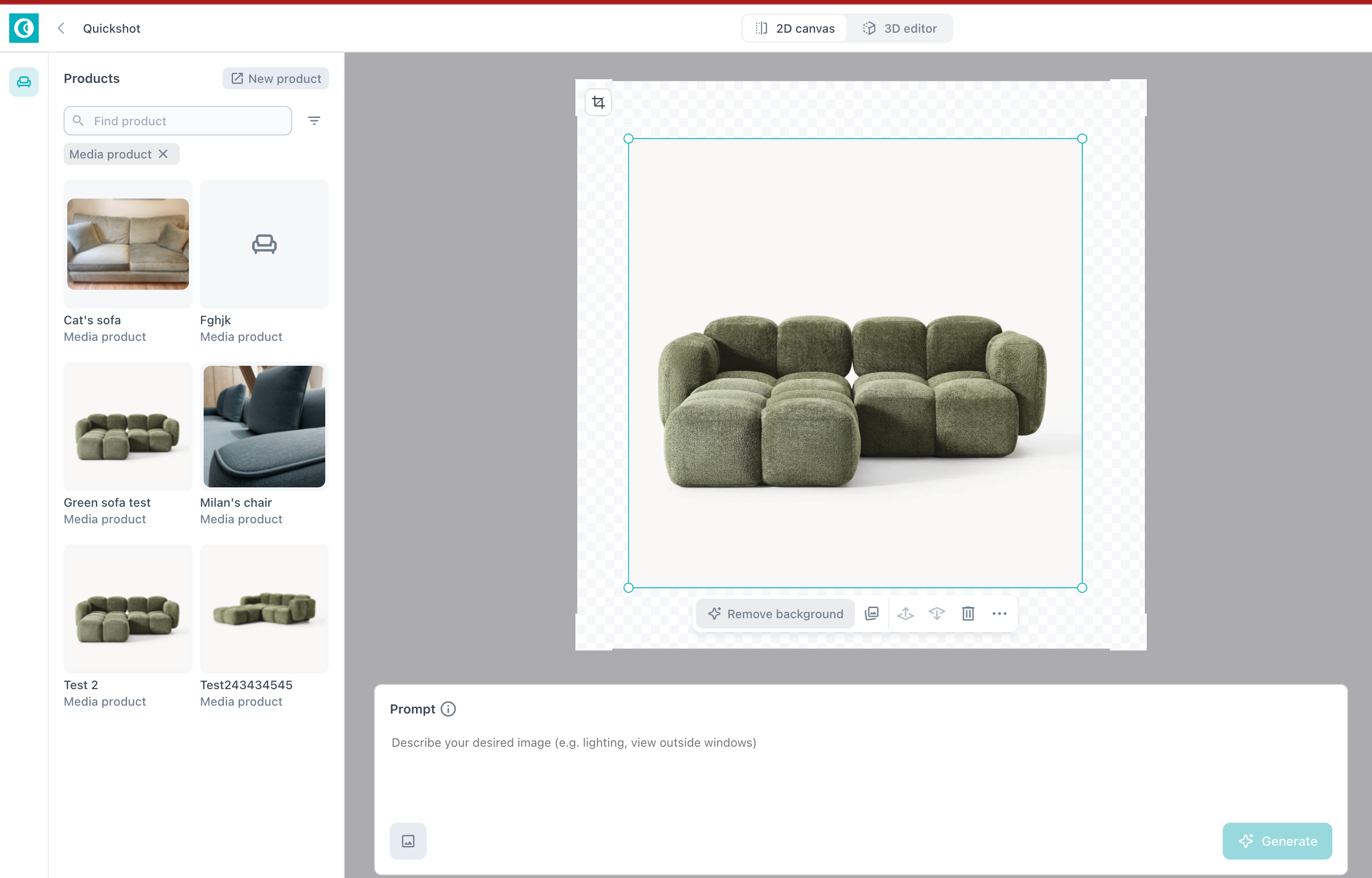
Media Products and Master Assets share the same product list, each clearly labelled. Use the Product Type filter to narrow the list to one or the other.
Click the icon in the top-left of a Media Product thumbnail to view all images associated with that product.
Once an image is added on the 2D canvas, use Remove background to isolate the product for precise placement.
Drop both Media Products and Master Assets onto the same canvas, scale and position them together, then prompt and generate as usual.
Publish from the Quickshot interface to make the new visual available in the Curator.
Using Media Products in the Curator
In the Curator's product picker, use the Product Type filter to find Media Products, then add them alongside any Master Asset products you want.
For each Media Product, you can feature External Media (your uploaded images) and Quickshot visuals in the PDP.
Good to know
Media Products work in the 2D canvas only. The 3D editor requires a Master Asset.
In the Curator, Media Products support External Media and Quickshot visuals. 360° spin, AR, and Dimension Shots still require a Master Asset.
For the full walkthrough, see the Media Product Integration in Quickshot article.