New settings for material swatches in Curator
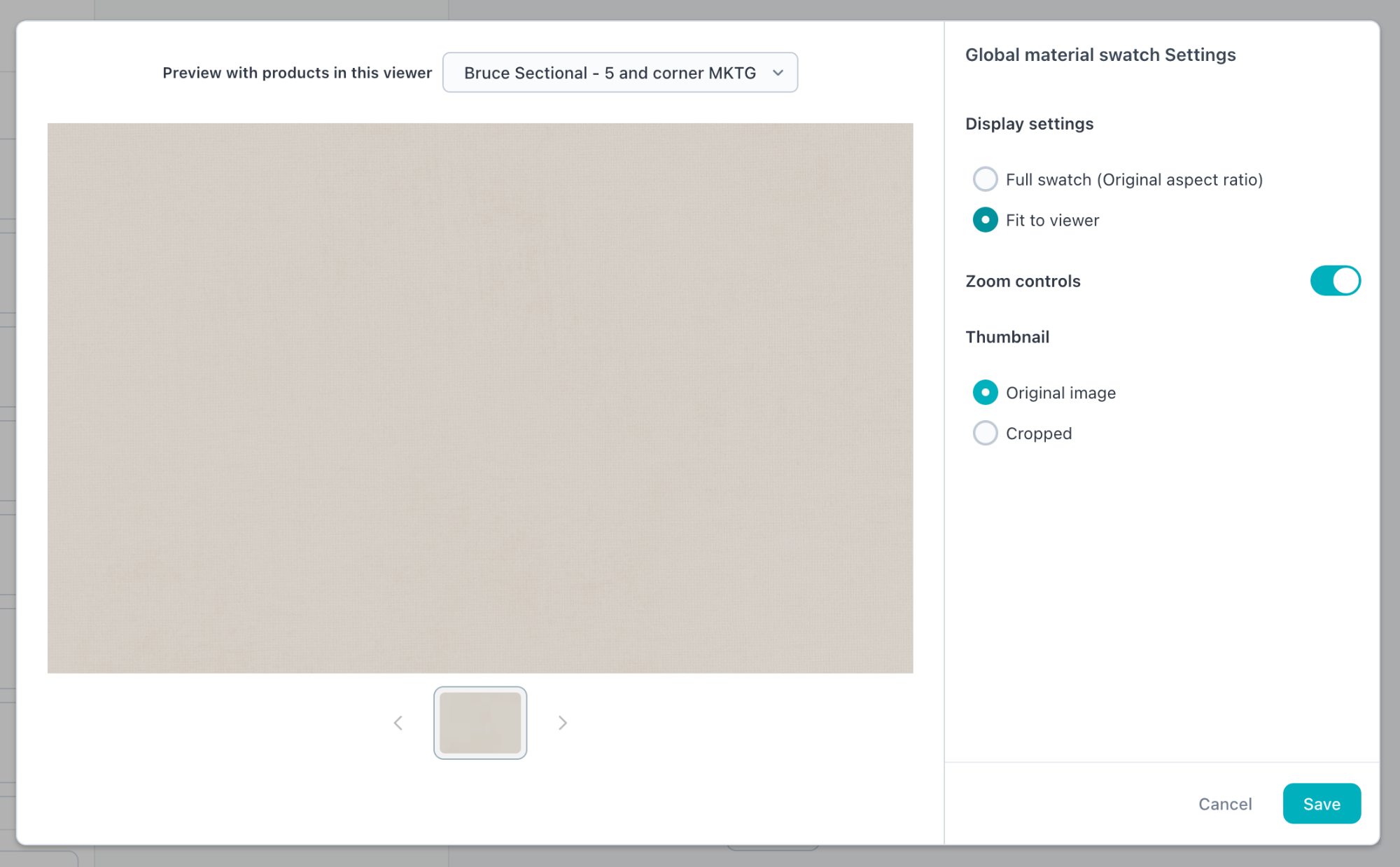
What is it?
New settings in Cylindo Curator for material swatches that allow you to change the way a material is presented.
Why does it matter?
You now have the option to change the way a swatch and its thumbnail is being displayed, directly from within the Curator. For example, materials with patterns can be set to show the full swatch so the entire pattern is seen, or you can select a cropped version to show more details. You can also decide what you want to show on the thumbnail by select a specific part of the swatch.
How does it work?
The material swatch settings allow you to change the following:
Display settings: Full swatch/Fit to viewer - set if the material swatch should be displayed fully, or if the space the viewer has should be filled out.
Zoom control: on/off - set if the material can be zoomed in or not.
Thumbnail: original image/cropped - set if the original image should be displayed or select a specific part of the swatch to be used as the thumbnail.
Bulk settings
Open the curator
Add material swatches as a content type
Hover the Material Swatches and press the settings button (see below screenshot)
Now you can bulk edit the Material Swatch settings
Settings for individual swatches
Open the curator
Make sure Material Swatches have been added as content type
Select the material in the thumbnail bar
Press the settings button to open the Material Swatch settings (see below screenshot)
Now you can edit the Material Swatch settings for this material