Quickshot video - Beta program
Lifestyle video of your real products, with the camera under control
Status: Early access. Quickshot video is available to try now in a limited form. Behaviour, presets and UI may change before general availability. See What's coming next for what's still in progress.
Quickshot video turns a Quickshot lifestyle image into a short video. The camera moves through a 3D version of the scene, so your products stay in place and at their real size from the first frame to the last. You plan and preview every camera move before anything is generated.
How to report issues
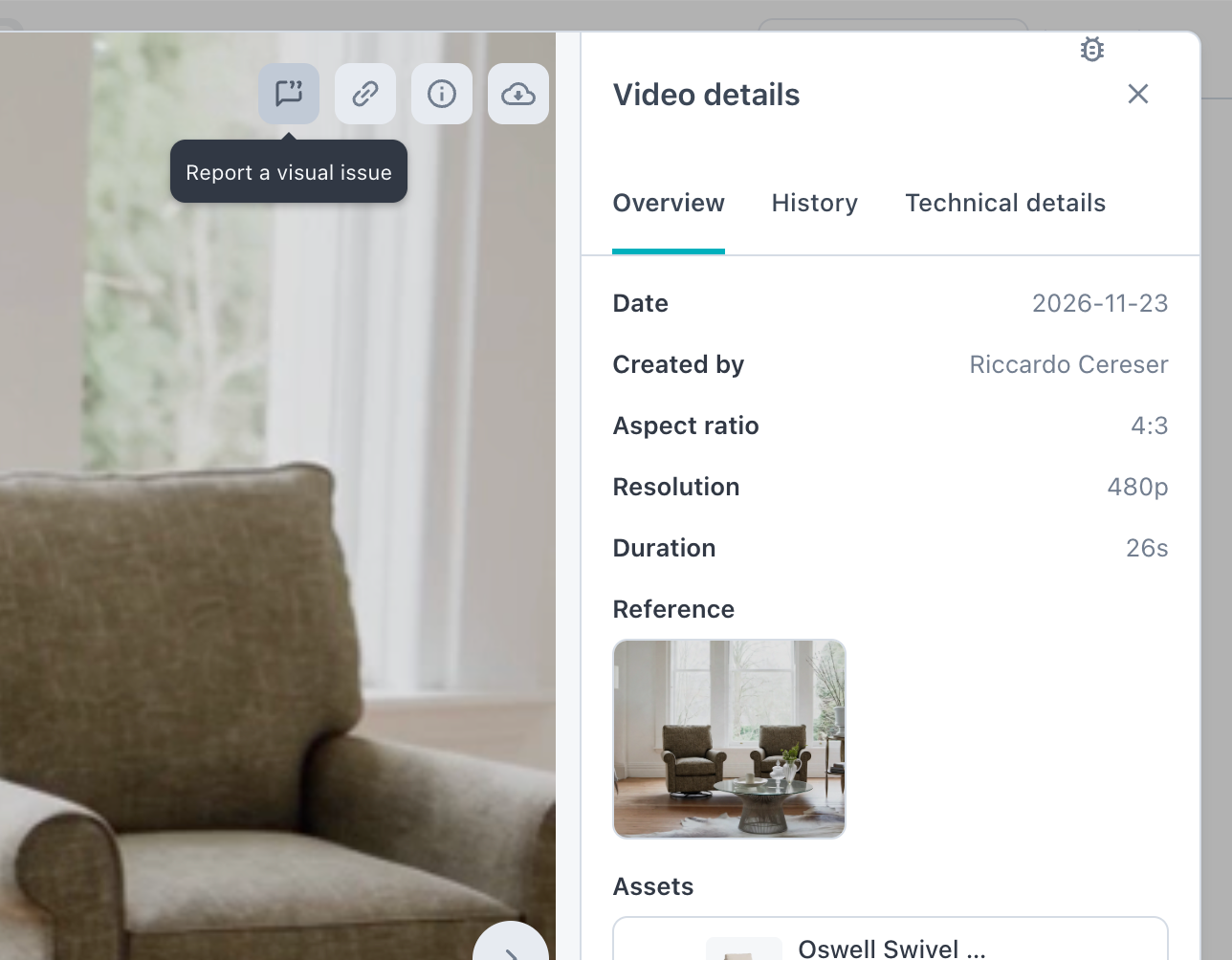
From within Quickshot, click on a Video thumbnail in the result to view it. With a dedicated button on the top right corner you are able to describe visual issues specific to the video generated. Your input will help us improve Quickshot video to meet your expectations.
What you can do in the demo today
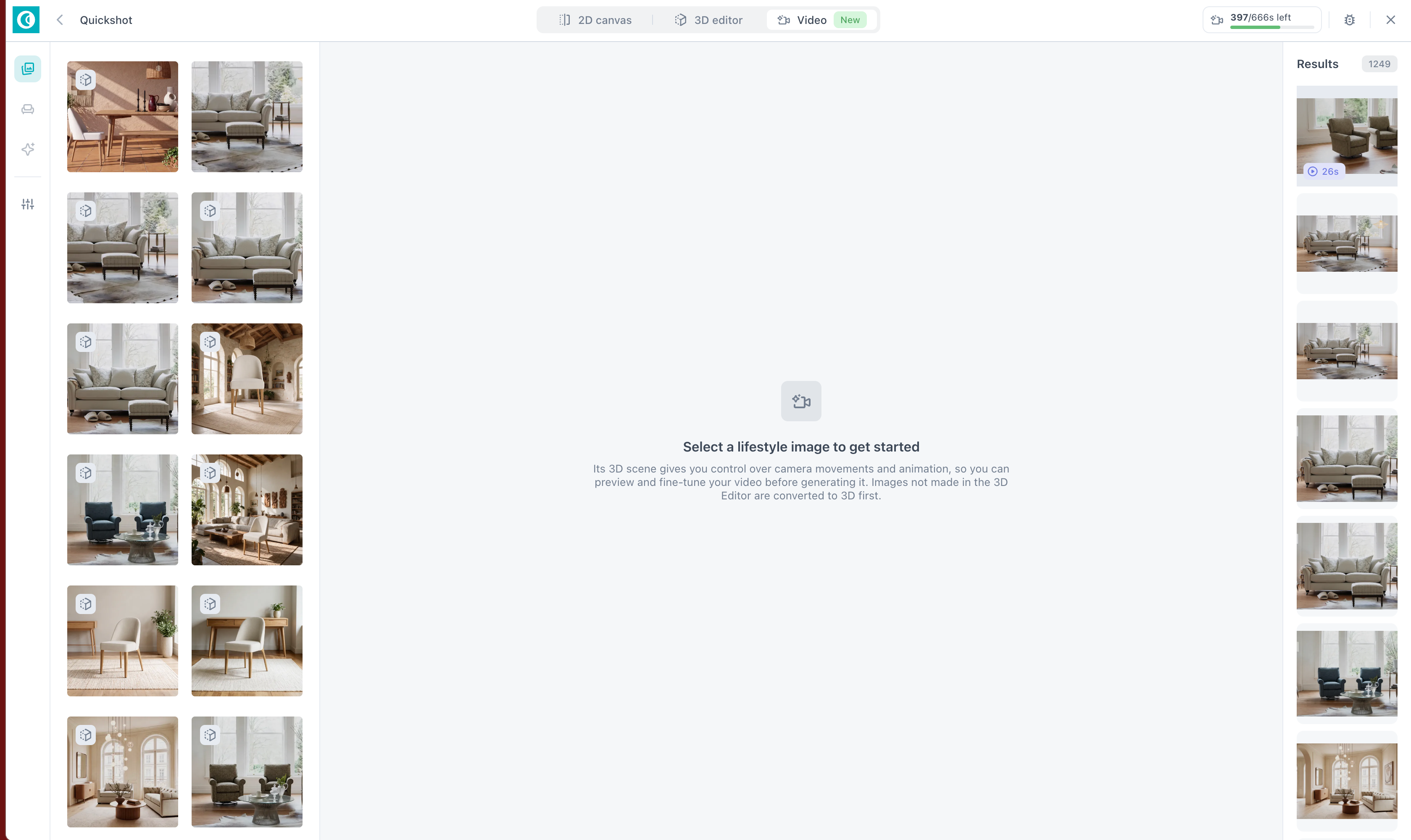
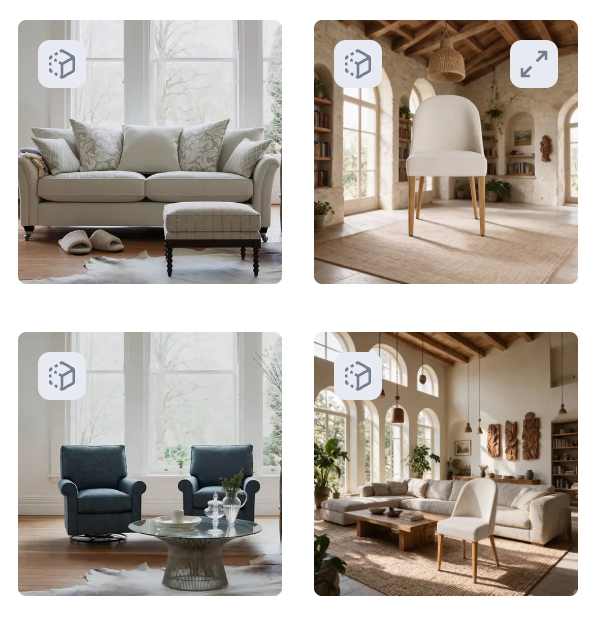
To make a video, you first need a Quickshot lifestyle image created with one of the 3D workflows: the 3D editor or the 3D backdrop. These images have a 3D icon (a small cube) in the top-left corner of the thumbnail. Open the image, then open the Video tab.
Option A — Pick a video preset
Choose a preset such as Finish parade, Room tour or Seamless loop. The shots are laid out on a timeline for you, ready to adjust.
Option B — Describe your own shots to Vision
Tell Vision in the chat what you want to see, and it plans the shots for you. If a camera move can't be staged, the chat tells you why and runs the rest of the plan.
⏭️ Coming soon: start a video straight from an image.
Source images — start from the 3D icon
Images made with the 3D workflow or the 3D backdrop both carry the 3D icon and give the best results. 3D workflow images load fastest. Other Cylindo images can be tried, but results vary.
[GIF: finding an image with the 3D icon]
Timeline — preview before you generate
Adjust the shots on the timeline and preview each one: push in, orbit, rise or reveal. The preview shows the camera movement and framing with everything in focus. Depth of field and the final look of materials only appear in the generated video.
Features and options — ask Vision
Change any fabric, finish or option by asking Vision in the chat, for example "make the sofa green velvet with oak legs". One video can show the same product in several finishes.
Format — one scene setting
A video takes its aspect ratio from the scene, so set 9:16, 4:5, 1:1 or 16:9 before you build the scene. Cropping a finished video cuts into the product.
Generate
Once you're happy with the shots, choose a resolution and click Generate. Videos run up to 29 seconds and are silent. Download the result and publish it, or finish it in the tools you already use.
Draft in 480p to check the motion. Share in 720p. Use 1080p when the fabric has to be seen up close.
Use cases
These are the four scenarios we think Quickshot video unlocks, and we'd love your input on them.
1. Configurations in motion
Show the same product in different fabrics and finishes in one video, without a shoot for each one.
2. Product page video
One product, its finishes and details, sitting in the image gallery to help shoppers choose. Match the gallery's ratio, usually 1:1 or 4:5.
3. Website hero loop
A wide, calm shot that loops behind the headline and sets the mood for a collection.
4. Social reels and feed posts
Short videos of 6–15 seconds in 9:16 or 4:5, opening on the product, from close-up to wide shot.
What's coming next
Actively in progress:
People in videos, at the right size next to your furniture
A dedicated interface for features and options
More source images: more flexibility in which images you can make videos from
In considerations:
Videos from your own photography
Editing and audio inside Quickshot
Tell us what you think
The demo is intentionally limited, and the roadmap isn't locked. We'd especially like to hear:
Which of the four use cases above matter most for you and your customers?
Any use case we've missed?
Is the visual output meeting your expectations?
Was this helpful?
Still need help? Ask the team