Implementing Banners in AR
Overview
AR banners live directly in the AR experience and can show important product details, as well as provide customers the ability to take further action on a product from AR (add to cart, go to PDP page, contact sales rep, and more).
When buyers engage with AR, they are likely in the evaluation stage of their buying journey - testing a product they are interested in within their environment to ensure it’s the right fit. However, once a buyer opens up AR they would need to close AR, go back to the product page, and decide their next step (add to cart, favorite, add to compare). With AR Banners,you can control where buyers go next in their journey and make it easy to get there. AR no longer becomes a dead end in the buying journey and instead offers a call to action that helps drive buyers through the funnel and convert more.
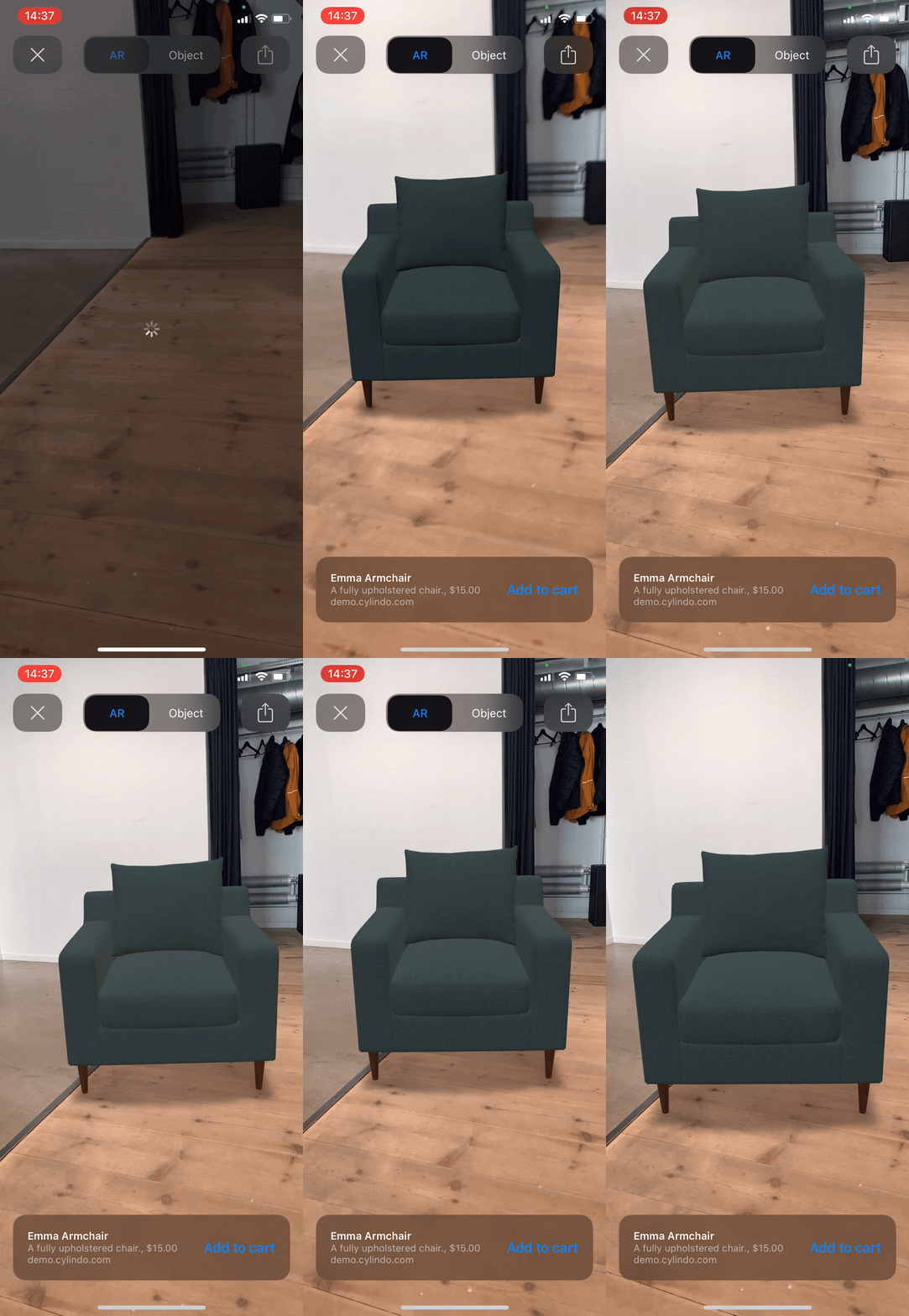
How to implement banners
To implement AR Banners, you’ll need to work with your development team/agency to configure and customize the information shown/call to action in order through your website. This will typically take a few days to review the technical documentation below, build in a sandbox or testing environment, and then run final testing before pushing live.
Developers, please use the documentation below to turn the banners on for devices and configure what product details/call to action you want displayed.
360 HD Viewer - Properties
ARBanner
The ARBanner property defines the devices where the banner should be displayed.
This property has been configured to receive a string to indicate the platform where the banner should be displayed.
The Cylindo core expects to receive this value due to the differences of the banners between each implementation.
iOS allows us to configure the title, subtitle, price and action of a banner while Android allows us to configure a title and a URL to redirect the users once the AR view is closed.
The possible values for the ARBanner property are: ‘ios-android’, ‘ios’, ‘android’ and ‘none’. These values enable the banner in both platforms, iOS (Safari browser only), Android and to keep the banner hidden in both platforms.
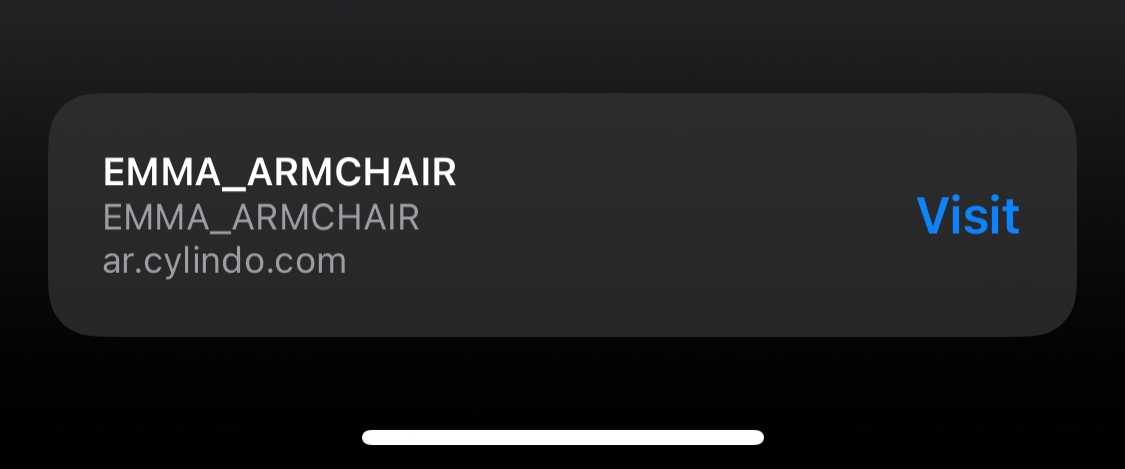
The example below shows how an enabled AR banner on iOS and Android with default values looks like. As you can see, only the Cylindo product code is shown, which isn’t the most valuable for your end users experience. We highly recommend that ARBannerConfig properties should be specified to make AR banners an impactful part of your end users buying journey.
AR banner demo - Default values
ARBannerConfig
The Cylindo core expects to receive an object with the banner info. The received information is used to configure the texts that will be shown through the banner on each browser.
The available properties to be configure are:
title
E.g. Emma Armchair, Green fabric
This property is displayed on both platforms iOS and Android.
This text is displayed as the title of the banner.
When this value is not configured its default value is the code defined for the product in the Cylindo CMS.
This property is commonly used to display the product name, and the variation displayed,
subtitle
E.g. Available in more than 100 combinations.
This property is displayed only on iOS.
This text is displayed as the subtitle of the banner.
When this value is not configured its default value is the code defined for the product in the Cylindo CMS.
This property is commonly used to provide details of the product.
price
E.g. $1500.00
This property is displayed only on iOS
This text is displayed next to the subtitle
This is used to display the price and its currency of the product.
action
Both banners iOS and Android display a button to continue the flow of the experience. The button has a different behavior on each platform. On iOS it triggers an event while the Android button redirects to a page. The text of the iOS button can be configured while the Android button says “Visit” anx$d this text cannot be configured.
To configure the iOS button we’ve introduced this property to allow customers to configure the text of the action button displayed in the iOS banners.
When the button is clicked an event is triggered from the Cylindo API and the event can be recognized by the customer to execute a callback function when it happens.
This is commonly used to continue the checkout process but could be also used to redirect to another section of a website to see more details, etc.
AR banner demo - Event Action button
The above properties are the basic parameters, but we’ve introduced some other properties to improve the behavior of the banners.
androidTitle
E.g. Emma Armchair, Green Fabric, $1500.00
Android parameters are limited, so we’ve introduced this property to set a custom title for android devices for the cases where the customers want to display complementary information in the Android banners.
qrAction
When a user is using the viewer on desktop devices and the QR code of the viewer instance is scanned with a mobile device; the AR experience is handled by Cylindo through a landing page. This experience is not handled by the website of the customer. This process implies that customers are not able to subscribe to an event listener to execute a callback once the button of the banner is tapped. For this reason we’ve introduced the qrAction property.
This property allows customers to define a different label for the banner button that is displayed when the AR experience is controlled by Cylindo. When it happens and the button of the banner is tapped the AR experience is closed and the browser redirects to the redirect url provided by the client.
An example of the expected configuration would be:
var options = { ARBanner: 'ios-android', ARBannerConfig: { qrAction: 'Read more', action: 'Add to cart', title: 'Emma Armchair', androidTitle: 'Emma Armchair, a fully upholstered chair', subtitle: 'A fully upholstered chair', price: '$1500', }, };Using the configuration above, here’s an example of what the AR banner experience will look like:
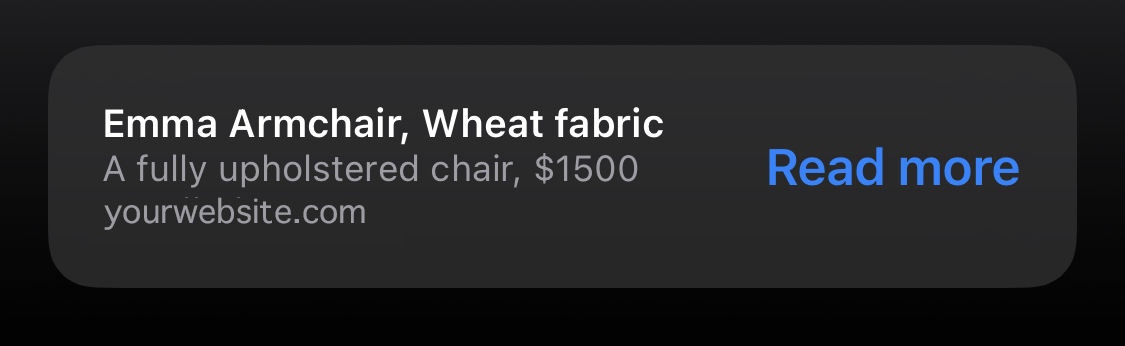
Please note that on iOS, AR banners will always display the domain of the page in which the viewer instance is opened or the alternative url specified. However, AR experiences triggered after scanning a Cylindo viewer QR code or a QR code fetch by the Clyndo API will display "ar.cylindo.com" as domain.
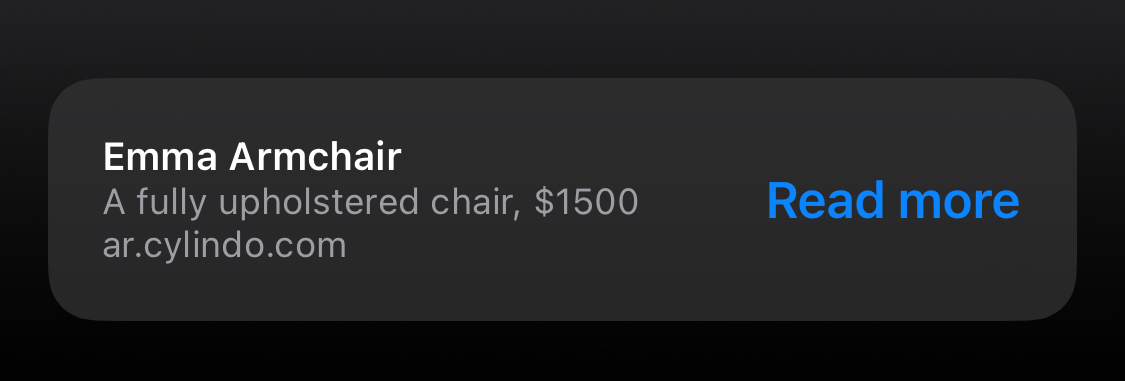
Banners are not static, you can configure your banners to dynamically change the text depending on what configuration your end users are selecting before they engage with AR.
If you want the banner to dynamically display a different fabric color, you can use the below:
window.viewerInstance.update('ARBannerConfig', { qrAction: 'Read more', action: 'Add to cart', title: 'Emma Armchair, NEW FABRIC COLOR, subtitle: 'A fully upholstered chair', price: price, });It is worth mentioning that the information and fields displayed in the banner can be modified according to your unique needs and you should use the information on your website and database to fill it.
Using the configuration above, here’s an example of what the AR banner experience will look like:
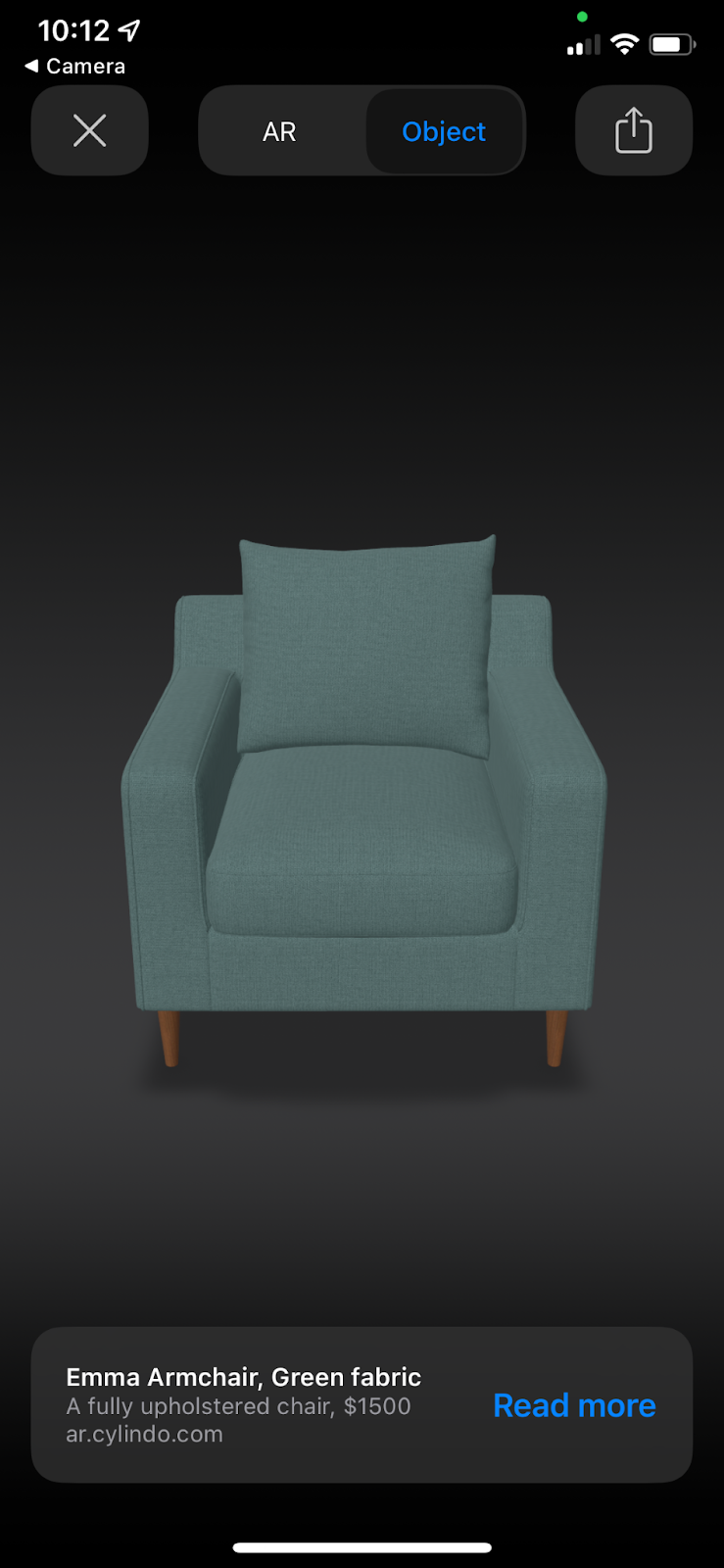
AR banner demo - Update banner info at runtime
Banners flow
As mentioned above in the properties section, there are different flows for each banner depending on the device and the way in which the AR experience was requested. So we’ll explain this in detail in this section.
For the new version of the viewer we’ve introduced the
getArRedirectUrl property, this property expects to receive a callback function that will be executed to get the redirect URL each time it is required by the viewer. The viewer executes this function when features are changed and it needs to prepare the AR experience values for the next iteration. The value retrieved by the function is used when the AR experience redirects to a webpage, it happens when the action button of the banners is clicked or when the AR experience is closed.
However the redirect url is not needed for all the cases, some other times and will be triggered when the action button is tapped.
To explain this we’ve separated the use cases to explain when the Redirect url is needed and when the event is triggered.
AR View is open directly on an Android device.
For this case the customer website is open on an Android device
The viewer displays the View in your space button.
The end user taps the View in your space button and the AR experience is triggered.
AR is open and the banner will appear showing the product information and it will have a button with the label: Visit.
When the visit button is clicked, by default, the AR view is redirected to the web page where the AR experience was requested.
If the customer requires to change the redirect url it can be configured through the getArRedirectUrl callback.
AR View is open directly on an iOS device.
For this case the customer website is open on an iOS device
The viewer displays the View in your space button.
The end user taps the View in your space button and the AR experience is triggered.
AR is open and the banner will appear showing the product information and it will have a button with the label configured through the property: action.
When the action button is tapped, the event AR_ACTION_BTN_TAPPED (instance:ar:action:btn:tapped) is triggered so the customer can subscribe to the event and execute a callback.
AR View is open on an Android device through a Desktop device.
For this case the ARDesktop flag has been enabled to true in the viewer instance and the ARBanner has been enabled to display the product information.
The user opens the customer website on a desktop device.
The viewer displays the View in your space button.
The end user clicks the View in your space button and the QR code is displayed.
If the user scans the code with an Android device the banner will appear showing the product information and it will have a button with the label: Visit.
When the visit button is clicked, by default, the AR view is redirected to the web page where the AR experience was requested.
If the customer requires to change the redirect url it can be configured through the getArRedirectUrl callback.
AR View is open on an iOS device through a Desktop device.
For this case the ARDesktop flag has been enabled to true in the viewer instance and the ARBanner has been enabled to display the product information.
The user opens the customer website on a desktop device.
The viewer displays the View in your space button.
The end user clicks the View in your space button and the QR code is displayed.
If the user scans the code with an iOS device the banner will appear showing the product information and it will have a button showing the text configured as qrAction, if this property is not set the default label would be Visit .
When the action button is clicked an event is triggered internally and the AR view is redirected to the web page where the AR experience was requested.
If the customer requires to change the redirect url it can be configured through the getArRedirectUrl callback.
The below 4 examples show how the flow of the AR banners can be configured.
AR banner demo - Without a redirect url
For this example the redirection is executed using the same url from where the AR experience is opened.
AR banner demo - Redirect URL set to https://cylindo.com
For this example the redirection is executed using the url configured.
AR banner demo - Redirect url set with an empty string
For this example the redirection is not executed because the redirection is removed with an empty string.
AR banner - Event executed from action button on iOS devices
For this example, there is no redirection when the call to action is opened directly through the mobile device. Instead of this a viewer event is triggered. However when the AR experience was opened through the QR code the redirection will be executed using the Redirect URL
Tracking AR Events with Google Analytic
There are two tracking events that are sent to your Google Analytics account for Augmented Reality.
The first event is triggered each time the View in your space button is tapped or clicked, this is to measure the interactions with the AR button. The difference with the earlier AR Launched event is that the earlier event was triggered just once and its purpose was to indicate that the AR launched was used in the session, but now this new event provides further granularity by tracking the number of interactions.
The second event counts the number of interactions with the button of the banner on iOS devices. Each time the iOS banner is tapped an event is triggered and we’re now forwarding that event to your Cylindo Google Analytics account.
With these new events you are able to get:
The number of views of the AR view by counting the number of times the AR clicked button is triggered on mobile devices.
The number of clicks on the AR banner button for iOS devices.
Unfortunately we were not able to track the event on Android devices due to the flow of the AR session on these devices. However customers are able to get this value using the traffic to their site. When it is coming from the ar.cylindo.com domain, it can be attributed to either clicks on AR banners or AR experiences closed on iOS devices.
If you want to track more granularly, you can set a redirect custom URL via the getArRedirectUrl callback to track AR banners interaction with the analytics tool of your choice.
Please ensure that the redirect URL triggers the correct product configuration parameters to the 360 HD Viewer.
Was this helpful?
Still need help? Ask the team